

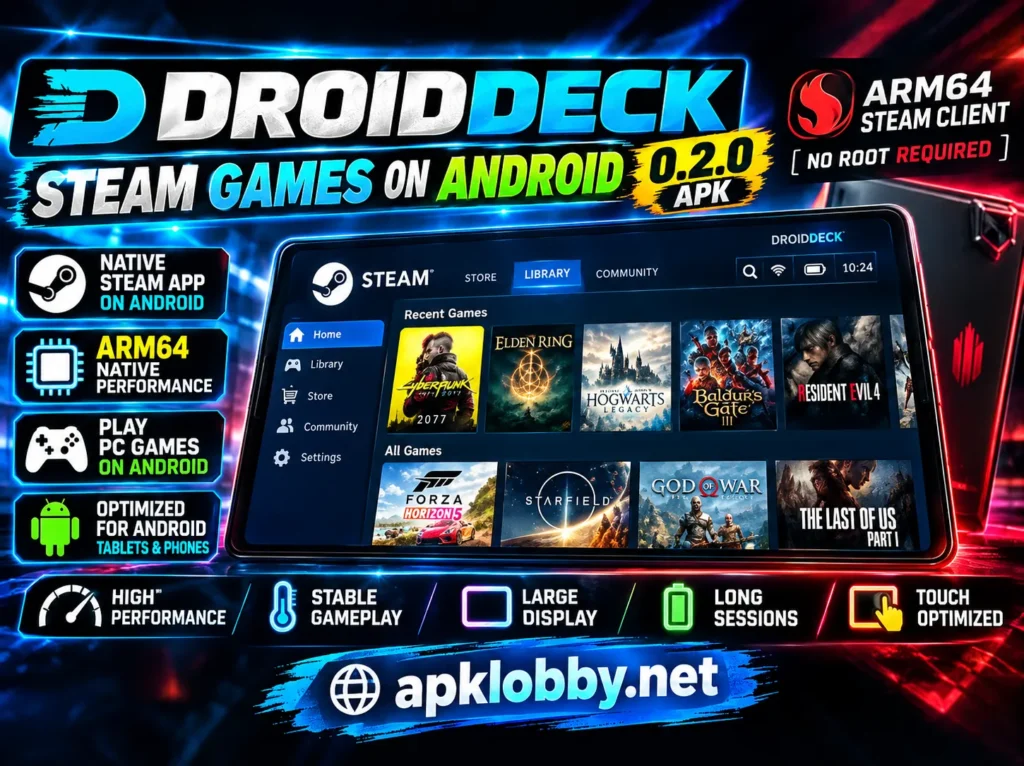
Android gaming has moved far beyond traditional mobile games, and DroidDeck APK 0.2.0 is one of the newest projects attracting attention from users who want to bring their Steam library to Android devices. Unlike a conventional Android game launcher, this is designed around Valve’s ARM64 Steam client and provides a Steam Deck-inspired interface on compatible Android hardware.
The 0.2.0 release is currently a beta, so users should not expect every Steam game to work perfectly. However, the project combines several technologies into one Android application, including the Steam client, Gamescope, ARM64 Proton, FEX, and Vulkan-based graphics components. The result is an ambitious handheld-style gaming environment that can turn a compatible Android phone or tablet into a portable Steam machine.
If you enjoy discovering new Android gaming projects, you can also check out our detailed Ender Inspector guide for another interesting gaming experience.
What Is DroidDeck APK?
However, DroidDeck APK is an Android gaming environment designed to run the real ARM64 version of Valve’s Steam client on compatible Android devices. Instead of requiring users to manually assemble a Linux environment, compatibility layer, graphics driver, and Steam installation, DroidDeck packages the major pieces into a more convenient setup.
The application launches Steam in Big Picture mode and uses Valve’s ARM64 Proton together with FEX when running compatible Windows games. FEX provides the x86/x86-64 translation required for Windows software on an ARM64 Android device, while Proton supplies the Windows compatibility layer.
This APK is also more than a Steam launcher. Version 0.2.0 includes a handheld-oriented launcher, Steam Deck-style controls and menus, optional desktop functionality, component management, and support for additional Linux applications and emulators.
Because the project is still in beta, compatibility should be considered experimental. A powerful Snapdragon device may provide a much better experience than an older or unsupported chipset, and individual games can behave very differently.
DroidDeck 0.2.0 Features
The 0.2.0 beta introduces a large collection of features. Some of the most notable ones are listed below.
Real ARM64 Steam Client
One of the biggest attractions is the inclusion of the ARM64 Steam client. This android game launches Steam through Gamescope and prepares Proton and FEX for use during the initial setup.
This gives users a familiar Steam environment instead of requiring them to manually navigate a complicated Linux desktop before accessing their game library.
Steam Deck-Inspired Interface
DroidDeck attempts to reproduce the handheld experience associated with Steam Deck. Its launcher includes a capsule-style game wall, a dedicated Games section, and individual game settings.
The interface is particularly useful on phones connected to a controller because users can navigate their library without constantly switching between Android windows.
Proton and FEX
Windows games require several compatibility technologies when running on ARM64 Linux.
This APK uses ARM64 Proton and FEX as part of this process. Proton handles Windows compatibility, while FEX translates x86/x86-64 instructions so software designed for traditional PC processors can operate on ARM64 hardware.
The application also provides different FEX presets, allowing users to experiment with settings ranging from stability-oriented configurations to more aggressive options.
Component Manager
Another useful feature is the component manager. Users can manage or change components such as FEX, DXVK, and VKD3D-Proton depending on the Proton configuration being used.
This is important because different games can require different compatibility and graphics configurations. Instead of treating every game exactly the same, DroidDeck game gives advanced users more control over the environment.
Additional Proton Options
The 0.2.0 release includes additional compatibility options such as GE-Proton and proton-cachyos.
These alternatives can be useful for experimentation when a particular game does not behave correctly with the default configuration. However, changing compatibility tools does not guarantee that a game will work.
Offline Startup
After signing into Steam once, DroidDeck android game can start in offline mode. This can be useful when traveling or when an internet connection is unavailable, although individual Steam games can still have their own online requirements.
Decky Loader Support
DroidDeck 0.2.0 also provides Decky Loader support inside Big Picture mode. This expands customization possibilities for users who are already familiar with the Steam Deck ecosystem.
Session Menu
The application provides a session menu that can be opened while a game is running. From this area, users can access display, controls, components, and other settings without completely leaving the gaming session.
This handheld-style approach makes the software feel more like a dedicated gaming device rather than a collection of separate Android utilities.
DroidDeck as an Android Gaming Launcher
One particularly interesting feature is DroidDeck’s ability to function as an Android home application.
When configured as the Android home app, the DroidDeck launcher can provide access to Android applications alongside games. This means an unused Android phone or tablet can potentially be converted into a more gaming-focused handheld interface.
The launcher is therefore not limited to Steam games. It can act as a central interface for Android applications and supported gaming software.
Dual-Screen Support
The version 0.2.0 also includes dual-screen functionality.
On compatible devices, the second display can be used for an Android application or transformed into a keyboard, trackpad, or Linux terminal. This can be particularly interesting for tablets, foldable devices, and Android hardware with external-display capabilities.
The usefulness of this feature will naturally depend on the Android device’s hardware and external-display implementation.
Optional Linux Desktop
DroidDeck is not limited to Steam’s Big Picture interface. Version 0.2.0 includes an optional LXQt Linux desktop environment.
This gives advanced users a more traditional desktop interface where they can access additional Linux software. The project lists one-tap installation options for several emulators, including RPCS3, ARMSX2, Dolphin, DuckStation, melonDS, Cemu, PPSSPP, and RetroArch.
This makes DroidDeck interesting for users who want a broader gaming environment rather than simply a Steam launcher.
DroidDeck 0.2.0 Requirements
Before installing DroidDeck, checking your hardware is important.
The published 0.2.0 requirements specify:
- Android 9 or newer
- Adreno 730 or newer, or compatible 8-series Adreno hardware
- Approximately 3 GB of free storage for the runtime
- Around 1.1 GB of additional storage for the optional desktop and applications
- A compatible ARM64 Android device
- A controller is recommended for PC-style games
The project currently focuses on compatible Adreno hardware. Devices using Mali or other unsupported GPU configurations should not be expected to provide the same compatibility.
Storage requirements can also increase after installing Steam games, because the runtime space is separate from the storage required for your actual game library.

How to Install DroidDeck APK 0.2.0?
Because DroidDeck is an early beta project, users should obtain the APK from the project’s official release page rather than downloading random modified copies from third-party APK websites.
The general installation process is straightforward.
Step 1: Check Your Device
First, confirm that your Android version and GPU meet the published requirements. A compatible Snapdragon/Adreno device is particularly important for this release.
Step 2: Download DroidDeck 0.2.0
Download the DroidDeck 0.2.0 APK from the project’s official GitHub release.
Avoid unofficial APK mirrors when possible. The project itself directs users to its GitHub release and issue tracker for the beta.
Step 3: Install the APK
Open the downloaded APK and allow Android to install applications from the relevant source if Android requests permission.
Complete the installation and launch.
Step 4: Complete the Runtime Setup
On first launch, DroidDeck prepares the required runtime components. The published requirements indicate approximately 3 GB of free space for this runtime.
The setup may take some time depending on your device and storage speed.
Step 5: Sign In to Steam
Once the runtime is ready, open Steam through DroidDeck and sign in using your Steam account.
A successful initial sign-in allows the application to prepare its Steam and Proton environment. DroidDeck can subsequently support offline startup after signing in once.
Step 6: Install a Compatible Game
Open your Steam library and select a game you own.
Download the game as you normally would through Steam. Remember that a game’s presence in your library does not guarantee that it will run correctly through DroidDeck.
Step 7: Configure the Game
If a game needs troubleshooting, use DroidDeck’s game settings, session menu, and compatibility components.
Advanced users can experiment with different Proton, FEX, DXVK, and VKD3D-Proton configurations.
How Well Does DroidDeck Run Steam Games?
Performance is one area where users should maintain realistic expectations.
This version 0.2.0 is a new beta, and community reports show that results vary considerably between devices and games. Some users report successful game launches, while others report low frame rates, crashes, or games that fail to start. Community testing has included devices with modern Snapdragon processors, but these reports should be treated as individual experiences rather than universal benchmarks.
The reason is that several layers are involved:
Android → ARM64 Linux environment → Steam → Proton → FEX → Windows game → Vulkan/graphics translation
Every game interacts with these components differently.
A flagship Android phone with an appropriate Adreno GPU, sufficient RAM, and good cooling is therefore a much more suitable test platform than a budget device.
For longer gaming sessions, external cooling and a physical controller can also make the experience more comfortable.
Is DroidDeck an Emulator?
DroidDeck download is not simply a traditional game emulator.
Its architecture is based around a Linux environment, the ARM64 Steam client, Proton, FEX, Gamescope, and Vulkan components. The runtime assets repository describes FEX as the x86-64 emulation runtime used for the ARM64 environment, while Proton is managed through Steam for actual game compatibility.
This distinction is important because users coming from conventional Android emulators may expect completely different behavior.
Pros and Cons
| Pros | Cons |
|---|---|
| Real ARM64 Steam client | Still a beta release |
| No root requirement | Game compatibility varies |
| Steam Deck-style interface | Requires powerful compatible hardware |
| ARM64 Proton and FEX support | Adreno-focused hardware support |
| Optional Linux desktop | Significant storage requirement |
| Component management | Some games may crash or refuse to launch |
| Decky Loader support | Setup is more demanding than normal Android apps |
| Dual-screen features | Performance depends heavily on the device |
DroidDeck vs Traditional Android PC Gaming Apps
DroidDeck takes a somewhat different approach from conventional Windows-game compatibility applications on Android.
Rather than providing only a container where users manually add Windows games, DroidDeck is centered around Steam. This means users can sign into their Steam account, browse their library, download games, and manage compatible titles through a familiar Steam interface.
The trade-off is that users are also dealing with a relatively new software stack. Community testing has already demonstrated that compatibility can differ substantially from one game to another.
FAQs
The project is distributed as an Android application through its public development/release channels. Users should obtain the beta from the project’s official release page rather than unofficial mirrors.
The 0.2.0 announcement specifically describes the project as running without root.
Yes, this application is designed to run the ARM64 Steam client and launch compatible Windows games through ARM64 Proton and FEX. However, compatibility is not universal.
No. DroidDeck 0.2.0 is a beta, and compatibility depends on the game, Android device, GPU, drivers, Proton version, and other components.
It can be configured as an Android
Final Thoughts
DroidDeck APK 0.2.0 is an ambitious Android gaming project that attempts to make the Steam experience considerably closer to a handheld console. Its combination of the ARM64 Steam client, Proton, FEX, Gamescope, Steam Deck-style controls, component management, and optional Linux desktop makes it much more than a simple APK launcher.
At the same time, 0.2.0 should be treated as an experimental beta rather than a replacement for a Steam Deck or gaming PC. Hardware compatibility is currently important, the project is focused on compatible Adreno devices, and individual Steam games can produce very different results. Community reports already show both successful launches and games suffering from crashes or poor performance.
For Android users with a modern compatible Snapdragon device, enough storage, and an interest in experimenting with PC gaming, DroidDeck provides an interesting new way to access a Steam library. As development continues, compatibility, performance, and device support may change substantially through future releases.
Leave a Comment