

Creating attractive videos no longer requires expensive software or advanced editing skills. With the right mobile editor, you can trim clips, add music, create captions, apply effects, and prepare content for social media directly from your smartphone. CapCut brings these tools together in a user-friendly editing platform that works well for beginners, social media creators, vloggers, and users who want to turn ordinary clips into polished videos.
This application combines traditional editing controls with templates and AI-powered tools. You can start with a blank project and build your video manually, or choose a ready-made template when you want to create something quickly. The platform also provides tools such as keyframe animation, slow motion, chroma key, stabilization, auto captions, text-to-speech, motion tracking, and background removal.
What Is CapCut?
CapCut APK is a video and photo editing platform designed to make content creation easier on mobile devices and other supported platforms. It provides basic editing controls alongside more advanced creative features, so users can gradually improve their editing skills without immediately switching to complicated professional software.
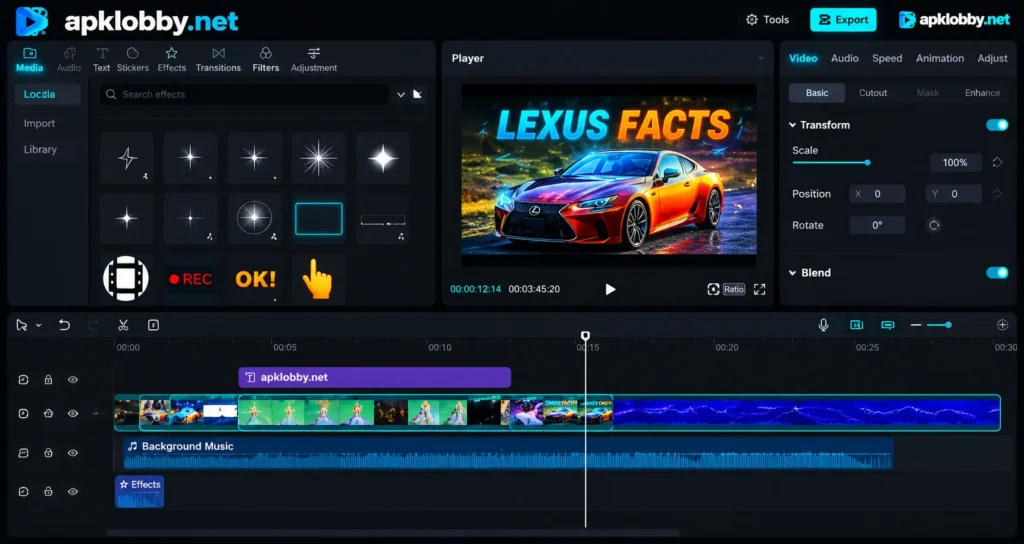
You can use this app to edit short social media clips, YouTube videos, travel memories, product promotions, gaming videos, educational content, and personal projects. Its timeline-based editor gives you control over individual clips, while templates can speed up the process when you need a finished video quickly.
CapCut video app also offers an online editor and desktop options, giving creators more flexibility when they move between devices. Its official platform currently highlights mobile, desktop, Pad, and online products.
Why Is CapCut Popular?
One major reason for CapCut’s popularity comes from its balance between simple controls and powerful editing options. Beginners can start with basic trimming and text, while experienced users can explore keyframes, layers, chroma key, transitions, color adjustments, and other advanced controls.
The Google Play listing shows that this application has reached more than 1 billion downloads, demonstrating its large global user base. The listing also highlights features such as keyframe animation, stabilization, motion tracking, auto captions, text-to-speech, and background removal.
Another advantage comes from the template-based workflow. Instead of building every transition and effect from scratch, users can select a suitable template and replace its media with their own photos or videos.
Key Features of CapCut
1. Basic Video Editing
CapCut android app includes the essential tools that most creators need for everyday editing. You can trim unwanted sections, split clips, merge footage, crop the frame, change video speed, and rearrange scenes on the timeline.
These simple controls help you remove mistakes and improve the overall flow of a video before you add advanced effects.
You can also adjust the speed of individual clips. This makes it easier to create slow-motion moments, quick transitions, or energetic sequences. The Google Play listing currently states that CapCut app supports speed adjustment from 0.1x to 100x along with speed curves.
2. Templates
Templates can save significant editing time. Instead of creating an entire project manually, you can select a suitable template and add your own media.
Templates work particularly well for short-form content because they already contain a visual structure, transitions, timing, and other creative elements. You can then personalize the project with your own clips, text, and music.
However, creators should still choose templates carefully. A popular template can make a video look familiar, while thoughtful customization can give the final project a more personal identity.
3. Filters and Effects
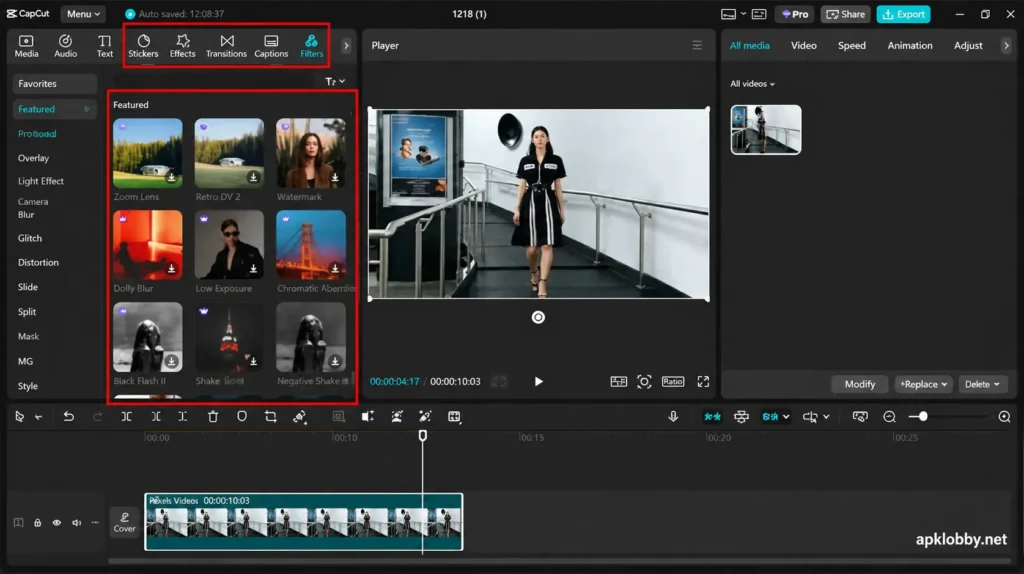
CapCut provides filters, visual effects, transitions, stickers, and other creative elements that can change the appearance of your footage.
You can use filters to create a consistent visual mood across multiple clips. Effects can add motion or energy to specific moments, while transitions help connect different scenes smoothly.
Good editing does not require using an effect on every clip. A cleaner approach often produces a more professional result. Select effects that support the story instead of covering the original footage with unnecessary animations.
4. Auto Captions
Captions play an important role in short-form video because many viewers watch content without sound. CapCut editing app can automatically generate captions from speech, allowing creators to add subtitles without typing every sentence manually.
After generating captions, you can review the text and adjust its appearance, timing, position, and style. CapCut’s online editor also provides speech-to-text and transcription tools.
Auto captions can save considerable time, but you should always check the generated text before publishing. Names, technical terms, accents, and background noise can sometimes affect transcription accuracy.
5. AI-Powered Editing Tools
AI has become an important part of modern video editing, and CapCut includes several AI-assisted features. Its current toolset includes options for automatic editing, captions, background removal, text-to-speech, image generation, and other creative workflows.
These tools can reduce repetitive work. For example, automatic editing can help organize footage, while AI-based background removal can separate a subject from its original environment.
CapCut android video editing app also promotes AI video creation workflows that can combine scripts, voiceovers, captions, visual scenes, and other elements. Feature availability can vary by region and product version, so users should check the tools available in their own account.
6. Background Removal
Removing a background can completely change the look of a video. CapCut provides AI-based background removal that can separate a person or object from the surrounding scene.
You can then place the subject over another image, video, or designed background. The platform also supports chroma key for green-screen-style editing, giving users additional control over background replacement.
This feature can help creators produce product presentations, reaction videos, educational clips, promotional content, and social media graphics.
7. Music and Sound Effects
Audio can determine how a video feels. CapCut provides music and sound-effect options that creators can use to improve the atmosphere of their projects.
You can place background music beneath your video, adjust its position, and balance the audio with spoken dialogue. Sound effects can also emphasize transitions, actions, or important moments.
For content intended for public or commercial use, always check the applicable licensing terms for the audio you select.
8. Text-to-Speech
Text-to-speech can help creators produce narration without recording their own voice. You can enter text and use an available AI voice to create narration for supported projects.
This feature can help with explainer videos, tutorials, storytelling content, product presentations, and short informational videos. You should still review the generated narration and adjust timing so it matches the visuals naturally.
How to Edit a Video in CapCut?
Getting started does not require complicated steps. Follow this basic workflow:
Step 1: Start a New Project
Open CapCut and create a new project. Select the photos or video clips you want to use.
Step 2: Arrange Your Clips
Place your media on the timeline in the order you want viewers to see it. Remove unnecessary sections and shorten clips that feel too long.
Step 3: Add Music
Choose suitable background music or add your own audio. Adjust the volume so the music does not overpower speech.
Step 4: Add Text and Captions
Add titles, labels, subtitles, or other text elements. If your video contains speech, use the auto-caption feature and review the generated text.
Step 5: Improve the Visuals
Apply filters, transitions, effects, and adjustments where they actually improve the video. You can also experiment with speed changes, overlays, and background removal.
Step 6: Review the Complete Video
Watch the entire project before exporting. Check the timing, spelling, audio levels, transitions, and overall pacing.
Step 7: Export the Video
When you finish editing, open the export options and select the appropriate resolution, frame rate, and format for your project. CapCut’s online editor provides export controls for these settings and also supports direct sharing to social platforms.
CapCut for Social Media Content
CapCut fits naturally into short-form content creation. Creators can prepare videos for platforms such as TikTok, Instagram, YouTube, WhatsApp, and Facebook. The Google Play listing specifically highlights sharing to these platforms.
For vertical videos, start with the correct aspect ratio and keep important text away from areas where platform interface elements may cover it. Shorter clips also benefit from a strong opening because viewers can quickly scroll to another video.
Instead of filling every second with effects, focus on clear visuals, readable text, clean audio, and good pacing. These elements usually matter more than excessive transitions.
Pros and Cons
| Pros | Cons |
|---|---|
| Beginner-friendly editing interface | Some advanced features may require additional access |
| Large selection of editing tools | Feature availability can vary by region |
| Useful templates and effects | Too many effects can make videos look cluttered |
| Auto captions and AI-assisted tools | AI-generated results still need human review |
| Supports advanced editing features | Some tools may change between versions |
| Useful for short-form social content | High-quality editing can require a capable device |
Is CapCut Good for Beginners?
Yes, CapCut provides a practical starting point for beginners because you can learn basic editing before moving toward more advanced tools. Start with trimming, splitting, text, music, and transitions. Once you understand the timeline, explore keyframes, chroma key, motion tracking, and other advanced features.
The template system can also help new creators understand how timing and transitions work. Instead of copying a template exactly, use it as a starting point and gradually develop your own editing style.
Tips for Better CapCut Videos
Keep your videos focused on one clear idea. Remove unnecessary footage instead of trying to save every clip. Use short text that viewers can read quickly, and keep captions synchronized with speech.
Pay attention to audio because poor sound can reduce the quality of an otherwise attractive video. Also, avoid excessive effects. A simple transition often works better than several complicated animations in the same sequence.
Finally, watch your finished video on a phone before publishing it. Small text that looks readable on a computer may appear too small on a mobile screen.
Conclusion
CapCut brings basic and advanced video editing tools into a creator-friendly platform. Its combination of timeline editing, templates, captions, effects, audio tools, background removal, and AI-assisted features gives users plenty of options for creating different types of content.
For beginners, the best approach involves learning the fundamentals first and then exploring advanced features gradually. Start by cutting unnecessary footage, improving audio, adding readable text, and arranging scenes effectively. Once you understand these basics, features such as keyframes, chroma key, motion tracking, AI tools, and templates can help you create more polished videos.
Whether you want to edit personal memories, social media clips, tutorials, promotional videos, or short-form entertainment content, this android app provides a flexible editing environment that can support the entire process from importing footage to final export.
FAQs
CapCut offers free editing tools and also provides features or services that may involve in-app purchases or paid access. The Google Play listing identifies in-app purchases.
Yes. this app has an Android app available through Google Play. Its current Google Play listing identifies it as a video and photo editing app.
Yes. this app currently provides several AI-assisted features, including auto captions, AI video creation workflows, background removal, text-to-speech, and other creative tools. Some features may vary according to region or product version.
Yes. this application provides AI-powered background removal as well as chroma-key tools for supported editing workflows.
Yes. You can create and export videos for social media platforms, including short-form vertical content. This application provides templates, effects, captions, music, text tools, and export options that support this type of workflow.





Leave a Comment